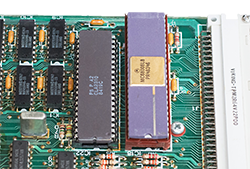
In addition to the Motorola 68008, the QL has a second processor, named by Sinclair the "Intelligent Peripheral Controller" (IPC).
The second processor is an Intel 8049 microcontroller that runs independently of the main processor and handles the keyboard, sound and serial port inputs.
 |
| The 8049 sits on the right side of the QL motherboard, squeezed between the microdrives and the keyboard connectors |
Communication between the 60008 and IPC uses a slow serial link and can only happen when the IPC is in-between activities like scanning the keyboard or producing the next segment of a sound.
This can cause a significant slowdown of QL software and the exact timing depends on the code that runs on the IPC.
The code is stored in an internal 2 KB ROM. Sinclair wrote the code, but it got programmed in the chip by the manufacturer, and there is no way to reprogram it.
This also means that if you need to replace an IPC chip, you cannot just buy any available 8049: It needs to come from a QL, or it will contain a different, incompatible ROM.
There are a few copies of the QL IPC code on the internet and they are all the same, apart for a single unused byte toward the end of the ROM.
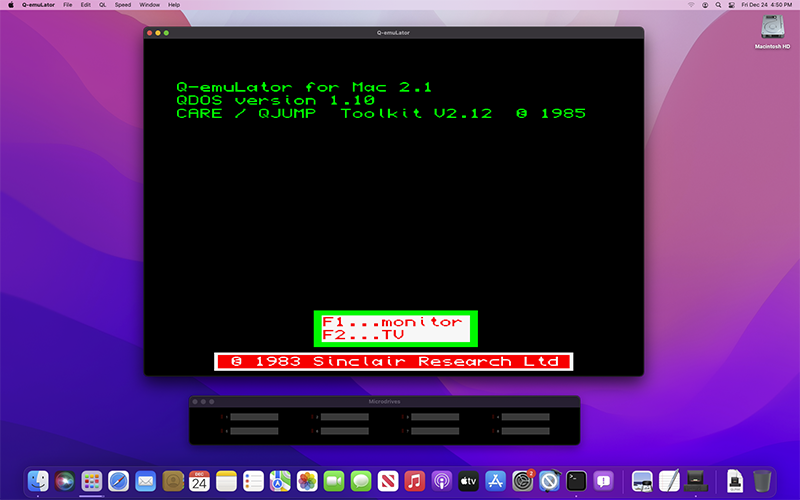
In order to improve the 'QL Speed' accuracy of Q-emuLator, I plan to better account for the 8049 timings (simulating the interaction between the 68008 andthe ZX8301 ULA will also be necessary, but that's a topic for another day). To compare the speed measured on a real QL to the emulation speed, I need to be sure about what code is running on the IPC, so I decided to dump the contents of the chip and compare them to the version from the internet.
EPROM programmers have the circuitry necessary to read the 8049 ROM, but I don't know of any programmers that support this chip, probably because it cannot be written to.
Reading the ROM can be accomplished by using the "ROM Verification Algorithm" described in the MCS-48 datasheet (MCS-48 is the family of microcontrollers that includes the 8049).
I bought an Arduino UNO board to connect it to the 8049 and read the ROM.
I also got a second QL 8049 to use in my initial experiments and avoid the risk of ruining the chip in my QL.
 |
| My two IPC chips look quite different... Will they contain the same or different code? |
There is a web page called
8049 Spy that explains how to connect the 8049 for reading the ROM.
I used the same method, with two differences:
- The 8049 is connected to an Arduino instead of the 6802 Nano Computer.
- I added a resistor for protection on each of the 8 data lines since these are bidirectional and both the Arduino and 8049 could end up trying to write to them at the same time if the timings are not perfect.
 |
| The IPC (on the right) connected to the Arduino board (left) |
 |
| View from above |
Here is the procedure to read the contents of the 8049 ROM:
- Apply 12 Volt to pin 7 to set the "ROM Verification" mode. In my circuit, I used a boost converter to convert the +5V used by the 8049 and Arduino to +12V.
- Set the 11-bit address of the ROM location to read, using DB0-DB7 for the low 8 bits and P20-P22 for the high 3 bits.
- Set the RESET pin to high to signal that the address is valid.
- After a few cycles, read the content of the ROM location from DB0-DB7.
- Set RESET to low and repeat from step 2 using the next address, until we've read all the 2048 ROM locations.
The Arduino code prints each ROM byte in hexadecimal to the serial link where the PC can read it (through the USB port) and display it (the Arduino IDE has a Serial Monitor window for that purpose).
Here are the connections from each of the 40 pins of the 8049 to the Arduino and other signals:
 |
| 8049 connections for ROM Verification |
The 11 bits for the address/data lines are connected to digital pins D2-D12 of the Arduino, while pin A0 (used as a digital pin) controls the 8049 RESET signal.
In addition to the resistors and boost converter, the only components needed are a 4 MHz crystal and two 22 pF capacitors to generate the clock signal.
Here is the code I wrote on the Arduino to read the ROM:
  #define RESET_PIN A0

  void SetReset(uint8_t b) {
      digitalWrite(RESET_PIN, b);
  }

  void SetDigitalPinDir(bool bOut) {
     if (bOut) {
         DDRD = B11111100 | DDRD;
         DDRB = B00011111;
     } else {
         DDRD = B00000011 & DDRD;
         DDRB = 0;
     }
  }

  void SetAddress(int addr) {
      PORTD = ((uint8_t)addr << 2) | (PORTD & 3);
      PORTB = (uint8_t)(addr >> 6);
  }

  uint8_t ReadDataBus() {
      return (PIND >> 2) | (PINB << 6);
  }

  void Output(uint8_t b) {
      if (b < 16)
          Serial.print("0");
      Serial.print(b, HEX);
  }

  void OutputNewLine() {
      Serial.println();
  }

  int addr;

  // Diagnostics
  uint8_t diff;

  void setup() {
      SetDigitalPinDir(false);
      pinMode(RESET_PIN, OUTPUT);
      SetReset(LOW);
      addr = 0;
      diff = 0;

      Serial.begin(9600);
      while (!Serial); // Wait until serial console is opened
  }

  void loop() {

      if (addr < 2048) {

          SetDigitalPinDir(true);
          SetAddress(addr);
          delayMicroseconds(100);
          SetReset(HIGH);

          delayMicroseconds(5);

          SetDigitalPinDir(false);
          SetAddress(255); // Input pullups
          delayMicroseconds(2);

          uint8_t data = ReadDataBus();

          SetReset(LOW);
          delayMicroseconds(10);

          Output(data);

          diff |= (data ^ addr);

          addr++;

          if ((addr & 31) == 0) {
              OutputNewLine();

              if (addr == 2048) {
                  pinMode(RESET_PIN, INPUT);

                  diff ^= 255;
                  if (diff) {
                      Serial.print("Some data lines appear disconnected: 0x");
                      Output(diff);
                      OutputNewLine();
                  }
              }
          }
      }
  }
Tweaking the code to make it work took longer than I expected. I found that initially some pins of the 8049 were not making good contact with the breadboard. After straightening the pins and reinserting the 8049, I started getting some data that looked correct, but other bytes or bits were read as zeros. Setting the Arduino digital pins in a input pullup configuration helped, but there were still some remaining zeros. I continued to look for bad contacts, but in the end it turned to be a timing issue and adding or increasing the timeouts in the code finally resulted in a good ROM dump.
I found that both the 8049s I dumped contained identical code. The code also matched the one already available online. This was less exciting than discovering a new version of the IPC ROM, but at least now I'm sure about what is running on my QL (JM version) and know that any small remaining speed differences in the emulator must be caused by something else.
It would be interesting to dump the IPC ROM of an early QL and see whether the code is also the same.