Sunday, September 13, 2026

Q-emuLator 4.1

 Q-emuLator 4.1 has a new GPU graphics engine that uses less CPU and adds optional scanline and monitor persistence effects.


Variable pixel ratio - a feature requested by many users - is finally available. It allows  MODE 4 pixels to appear square at the expense of a squished image.


The built-in debugger now supports the 'step out' command and allows using the mouse to toggle breakpoints and inspect stack traces.


Friday, January 2, 2026

Q-emuLator 4.0 for Windows

Version 4.0 of Q-emuLator has been released for Windows 7 SP1 and later.


Extensive research went into making the CPU emulation cycle-accurate (also simulating its interaction with the ZX8301 video ULA and the 8049 coprocessor), creating a new lower-level format for microdrive images and studying the hardware of the ICL One Per Desk computer (a cousin of the QL).

Q-emuLator 4 also adds emulation of the QSound interface (3 sound channels), can run the pre-existing extended graphics modes inside a window, includes an improved ram disk driver and has more extensive debugging capabilities

For the nostalgic, there are monochrome monitor colour options and simulation of the microdrive motor and tape noise.

The overall experience of running the emulator should be smoother, with new features like default directories for ROMs/software/configurations, reduced audio latency, a Pause command (Windows-Alt-P), auto CPU speed setting, ability to create new empty MDV, MDVRAW, QXL.WIN and IMG file containers.

The manual has been updated and expanded and there are now an online troubleshooting page and a 'check for updates' command.

For a more detailed list of everything that's new in version 4, see this web page.

Sunday, January 8, 2023

Q-emuLator 2.2 for macOS

Q-emuLator for macOS version 2.2 has been released, now allowing the creation of subdirectories in QXL.WIN containers and on floppy disks. The included Toolkit 2 has been updated to a recent version that includes the SuperBASIC MAKE_DIR command.

Sunday, September 25, 2022

Q-emuLator 3.5 for Windows

The latest update of Q-emuLator for Windows implements the extended system call to create a new directory in a QXL.WIN container or floppy disk (in addition to a Windows directory, where it was already available). It's also bundled with a more recent version 2.34 of the Toolkit 2 that includes the MAKE_DIR command.

The built-in debugger (accessed by pressing F11 while the emulated QL is running) has been updated and it now supports conditional breakpoints, complex expressions and text that is more readable on large displays.

Friday, December 24, 2021

Q-emuLator updates

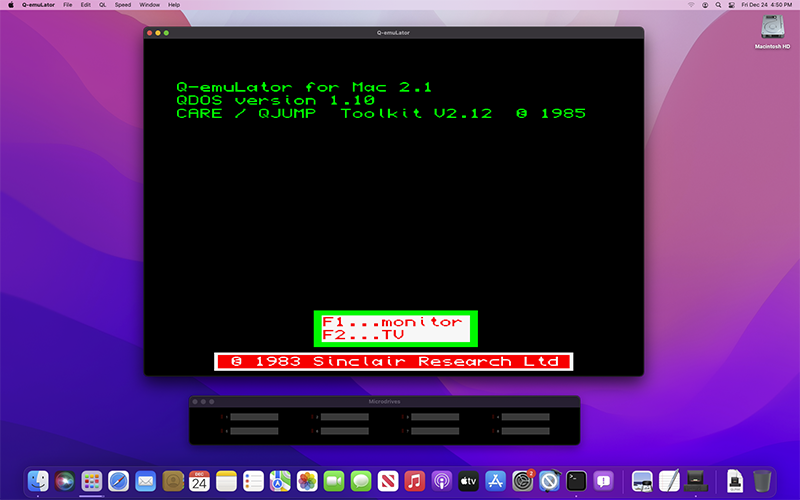
Q-emuLator versions 2.1 for OS X and 3.4 for Windows are now available for download.

SMSQ/e support has been improved when using the emulator-specific build of SMSQ/e (available here).

Both formats of microdrive images (mdump_task and QLay) are now supported by the unregistered version of the emulator, since supporting only one of them was confusing.

The version for Intel Macs also catches up with the TCP/IP driver improvements recently added to the PC version, and audio emulation has been made compatible with OS X 11 Big Sur.


Monday, September 7, 2020

Q-emuLator 2.0 for macOS

Q-emuLator 2.0 has been released, for Intel Macs running macOS 10.14 "Mojave" or later.


Apart from recompiling the code for 64 bit (32 bit apps are no longer supported since macOS Catalina), there has been extensive work to update functionality that relied on OS X APIs that Apple has discontinued or modified with incompatible behaviour.

Other changes are related to adjusting to the evolving macOS security constraints and to including some of the recent emulator changes that have been released in the Windows version. A few of these changes have also been applied to the 32 bit app (version 1.3.1) to make them available on older versions of OS X.

There is a new Quick Start Guide to help users new to Q-emuLator, or even the QL:


If you purchased a registration for version 1.x, this is a paid upgrade, except for people that have registered in the last year. (If you've registered in September 2019 or later, you may find that the new version already accepts your existing code, or contact me if it doesn't).

Sunday, May 10, 2020

Dumping Intel 8049 ROMs

In addition to the Motorola 68008, the QL has a second processor, named by Sinclair the "Intelligent Peripheral Controller" (IPC).

The second processor is an Intel 8049 microcontroller that runs independently of the main processor and handles the keyboard, sound and serial port inputs.

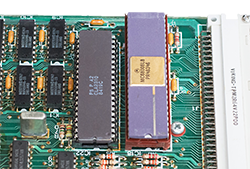
The 8049 sits on the right side of the QL motherboard, squeezed between the microdrives and the keyboard connectors

Communication between the 60008 and IPC uses a slow serial link and can only happen when the IPC is in-between activities like scanning the keyboard or producing the next segment of a sound.

This can cause a significant slowdown of QL software and the exact timing depends on the code that runs on the IPC.

The code is stored in an internal 2 KB ROM. Sinclair wrote the code, but it got programmed in the chip by the manufacturer, and there is no way to reprogram it.
This also means that if you need to replace an IPC chip, you cannot just buy any available 8049: It needs to come from a QL, or it will contain a different, incompatible ROM.

There are a few copies of the QL IPC code on the internet and they are all the same, apart for a single unused byte toward the end of the ROM.

In order to improve the 'QL Speed' accuracy of Q-emuLator, I plan to better account for the 8049 timings (simulating the interaction between the 68008 andthe ZX8301 ULA will also be necessary, but that's a topic for another day). To compare the speed measured on a real QL to the emulation speed, I need to be sure about what code is running on the IPC, so I decided to dump the contents of the chip and compare them to the version from the internet.

EPROM programmers have the circuitry necessary to read the 8049 ROM, but I don't know of any programmers that support this chip, probably because it cannot be written to.
Reading the ROM can be accomplished by using the "ROM Verification Algorithm" described in the MCS-48 datasheet (MCS-48 is the family of microcontrollers that includes the 8049).

I bought an Arduino UNO board to connect it to the 8049 and read the ROM.

I also got a second QL 8049 to use in my initial experiments and avoid the risk of ruining the chip in my QL.

My two IPC chips look quite different... Will they contain the same or different code?

There is a web page called 8049 Spy that explains how to connect the 8049 for reading the ROM.

I used the same method, with two differences:
  • The 8049 is connected to an Arduino instead of the 6802 Nano Computer.
  • I added a resistor for protection on each of the 8 data lines since these are bidirectional and both the Arduino and 8049 could end up trying to write to them at the same time if the timings are not perfect.

The IPC (on the right) connected to the Arduino board (left)

View from above
Here is the procedure to read the contents of the 8049 ROM:
  1. Apply 12 Volt to pin 7 to set the "ROM Verification" mode. In my circuit, I used a boost converter to convert the +5V used by the 8049 and Arduino to +12V.
  2. Set the 11-bit address of the ROM location to read, using DB0-DB7 for the low 8 bits and P20-P22 for the high 3 bits.
  3. Set the RESET pin to high to signal that the address is valid.
  4. After a few cycles, read the content of the ROM location from DB0-DB7.
  5. Set RESET to low and repeat from step 2 using the next address, until we've read all the 2048 ROM locations.
The Arduino code prints each ROM byte in hexadecimal to the serial link where the PC can read it (through the USB port) and display it (the Arduino IDE has a Serial Monitor window for that purpose).

Here are the connections from each of the 40 pins of the 8049 to the Arduino and other signals:

8049 connections for ROM Verification
The 11 bits for the address/data lines are connected to digital pins D2-D12 of the Arduino, while pin A0 (used as a digital pin) controls the 8049 RESET signal.

In addition to the resistors and boost converter, the only components needed are a 4 MHz crystal and two 22 pF capacitors to generate the clock signal.

Here is the code I wrote on the Arduino to read the ROM:
  #define RESET_PIN A0  
   
  void SetReset(uint8_t b) {
      digitalWrite(RESET_PIN, b);  
  }  
   
  void SetDigitalPinDir(bool bOut) {
     if (bOut) {  
         DDRD = B11111100 | DDRD;  
         DDRB = B00011111;  
     } else {  
         DDRD = B00000011 & DDRD;  
         DDRB = 0;  
     }  
  }  
   
  void SetAddress(int addr) {
      PORTD = ((uint8_t)addr << 2) | (PORTD & 3);  
      PORTB = (uint8_t)(addr >> 6);  
  }  
   
  uint8_t ReadDataBus() {  
      return (PIND >> 2) | (PINB << 6);  
  }  
   
  void Output(uint8_t b) {
      if (b < 16)  
          Serial.print("0");  
      Serial.print(b, HEX);  
  }  
   
  void OutputNewLine() {
      Serial.println();  
  }  
   
  int addr;  
   
  // Diagnostics  
  uint8_t diff;  
   
  void setup() {  
      SetDigitalPinDir(false);  
      pinMode(RESET_PIN, OUTPUT);  
      SetReset(LOW);  
      addr = 0;  
      diff = 0;  
   
      Serial.begin(9600);  
      while (!Serial); // Wait until serial console is opened  
  }  
   
  void loop() {  
   
      if (addr < 2048) {
 
          SetDigitalPinDir(true);  
          SetAddress(addr);  
          delayMicroseconds(100);  
          SetReset(HIGH);  
   
          delayMicroseconds(5);  
   
          SetDigitalPinDir(false);  
          SetAddress(255); // Input pullups  
          delayMicroseconds(2);  
   
          uint8_t data = ReadDataBus();  
   
          SetReset(LOW);  
          delayMicroseconds(10);  
     
          Output(data);  
   
          diff |= (data ^ addr);  
   
          addr++;  
   
          if ((addr & 31) == 0) {
              OutputNewLine();  

              if (addr == 2048) {
                  pinMode(RESET_PIN, INPUT);  
       
                  diff ^= 255;  
                  if (diff) {  
                      Serial.print("Some data lines appear disconnected: 0x");  
                      Output(diff);  
                      OutputNewLine();  
                  }  
              }  
          }  
      }  
  }     

Tweaking the code to make it work took longer than I expected. I found that initially some pins of the 8049 were not making good contact with the breadboard. After straightening the pins and reinserting the 8049, I started getting some data that looked correct, but other bytes or bits were read as zeros. Setting the Arduino digital pins in a input pullup configuration helped, but there were still some remaining zeros. I continued to look for bad contacts, but in the end it turned to be a timing issue and adding or increasing the timeouts in the code finally resulted in a good ROM dump.

I found that both the 8049s I dumped contained identical code. The code also matched the one already available online. This was less exciting than discovering a new version of the IPC ROM, but at least now I'm sure about what is running on my QL (JM version) and know that any small remaining speed differences in the emulator must be caused by something else.

It would be interesting to dump the IPC ROM of an early QL and see whether the code is also the same.

Sunday, November 5, 2017

Q-emuLator 3.2 for Windows


An update of Q-emuLator for Windows is now available at http://www.terdina.net/ql/winql.html.

New features:

  • Support for “mdump version 2” microdrive images
  • Use the original Sinclair device driver to access microdrive images
  • mdump_task now included in the FileUtil directory; Use it on a QL to create images of your microdrive cartridges (also works with any copy-protected software you own) that can be used with the emulator
  • Accurate sound timbre
  • Save QL screen snapshots to the desktop by pressing CTRL+F11

This version also includes many small compatibility improvements.

The payment processing service for registration has changed to Paypal.


Using the Sinclair device driver for microdrive access

Here is the new option to use the QDOS driver to access microdrive images (only works when using Sinclair ROMs):

LowLevelMdv

The option is enabled by default. The tradeoff is that access to microdrive images becomes much slower compared to the Q-emuLator device driver (used when the option is not checked). The simulated tape speed is about twice that of a real QL, so loading programs may take a few seconds.

Note that this option only applies to microdrive images; Other media attached to virtual microdrive slots still use the Q-emuLator device driver, as those types of media are not supported by the original QL ROM.

A few early software titles for the QL used copy protection schemes where they accessed the microdrives through QDOS calls, but then did some extra checks at fixed memory addresses where the Sinclair driver would store some of its internal data or cached sectors. There is even software that reads extra sectors from the tape after turning the motor off, relying on the inertia of the motor.

All of these more exotic protection schemes now work correctly in Q-emuLator when using a microdrive image containing a dump of the original copy-protected cartridge and using Sinclair ROMs with the “QDOS MDV image driver” option enabled.

Monday, September 21, 2015

SuperBASIC Syntax Highlighting in Notepad++

Having always needed to read and edit files from QL, PC, Mac and Unix, I’ve always used programmer’s editors that as a minimum support files with different character encodings and different line endings.

In the past I’ve used software like BBEdit, UltraEdit and jEdit, but my current favorite is Notepad++, a free text editor available for Windows. In addition to the usual features expected from code editors, it has all kinds of plug-ins available for specific tasks like for example pretty-printing XML and of course it has built-in syntax highlighting for the most common programming languages.

Syntax highlighting draws various words and elements of the source code using different colors, based on their function in the language (e.g. keywords vs. strings). It improves the readability of the code.

Notepad++ offers an easy and quick way of adding syntax highlighting for new languages by filling in some pre-defined fields with the lists of different types of keywords and operators and assigning a color to each one of them.
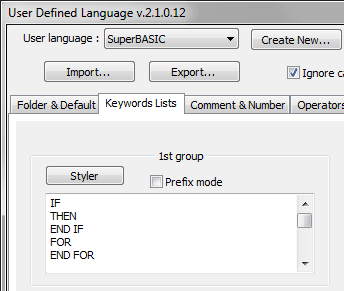
This is a portion of the language definition window:

Notepad++ SuperBASIC definition

It took about 30 minutes to enter all the keywords and operators from the QL and the keywords from the Toolkit II and the Turbo Toolkit.

I assigned different colors to SuperBASIC constructs and operators, QL keywords, Toolkit keywords, numbers, comments and strings. User-defined symbols have no style defined and are shown in black.

Here is how a procedure from the Turbo source code now looks in Notepad++ with the SuperBASIC syntax highlighting (click on the picture to see it full size):

SuperBASIC syntax highlighting

Now I find it easier to read and edit SuperBASIC code! (Q-emuLator runs most of my QL programs from Windows directories, so I can have them open in a Windows editor at the same time.)

The only thing I miss is the RENUM command, but implementing that in Notepad++ would require writing a plug-in.

The SuperBASIC definition for Notepad++ is available for download here.
To install it, unzip the file, then in the Language menu in Notepad++ select ‘Define your  language…’ and click on the ‘Import…’ button to load the definition file.
To try it out, load some SuperBASIC code and select the ‘SuperBASIC’ language from the bottom of the Language menu.

Wednesday, February 26, 2014

OS X Floppy Disk Access

floppyoutline

In OS X, it used to be possible for users to get raw access to removable disks, including floppy disks.

In recent versions of the OS, Apple changed the permissions and only root can now access floppy disks at the low level necessary to be able to read non-Mac and non-PC disks.

This change may have closed a potential security hole, but it also means that emulators are no longer able to access floppy disks without the root user authorizing the access at some point.

On OS X Mavericks, for example, Q-emuLator by default will not be able to gain access to QL floppy disks. The easiest solution is for root to grant access to the floppy disk to everyone.

In OS X all disks are visible (“mounted”) as subdirectories of the /dev directory, so to enable Q-emuLator to access a floppy disk you may use the following procedure:

  1. Open a terminal window.
  2. To go to the disk mount directory, type: cd /dev
  3. The raw devices for all disks are visible here as rdisk followed by a number. As for security purposes you don’t want to grant raw access to one of your hard disks by mistake, first take a look at what disks are available on your system by typing: ls rdisk*
  4. Now insert a QL floppy disk. The Finder will complain that it cannot read it and offer to initialize or eject the disk. Click the Ignore button instead to tell the Finder to mind his own business and leave the disk in the drive.
  5. Now take a look at the available disks again: ls rdisk*
    You should notice an additional disk listed (compared to the first time you run the same command). Take a mental note of the disk number for the floppy disk. For example, in my case the floppy appeared as rdisk2.
  6. Grant read/write access to the disk to everyone by typing the following command and entering the password (of course, replace the <n> at the end with the number that you noted at the previous step):  sudo chmod a+rw rdisk<n>

Now Q-emuLator will be able to access the QL floppy disk (as it did by default on previous versions of OS X).

If you insert another disk in the floppy drive, OS X will likely assign to it a different device name, so keep the terminal window open and repeat steps 4-6 for the new disk.

To avoid having to repeat this procedure often, it may be a good idea to use the emulator to copy the contents of your QL disks to folders on your hard disk (I use a different folder for each disk) and from now on use the folders instead of the floppy disks. Your software will load from the folders exactly as if it was still on the floppy disk (you can even continue to use the FLP device name), only much faster.

Tuesday, October 1, 2013

Code size

While looking for a Perl file to modify for another project, I came across a script I wrote ten years ago to count the lines and comments in C/C++ projects and out of curiosity decided to use it on the current Q-emuLator codebase.

cmp_w

The result is that Q-emuLator today has 68000 lines of code (67995 lines in 235 files to be precise, after excluding lines that are entirely blank or comments)…

…mostly written during nights over the last 19 years Confused smileSleeping half-moon.

The count includes some currently inactive code like the binary translator for the QemuFast project and it excludes the Unzip sources.

A few assembly and Perl files are also not counted.

There are then about 5000 lines of code between the M68000 debugger and a tool to generate tables for the disassembler and the timings for each CPU instruction.

Now if I add just a few lines I can get to 68008! Smile

Saturday, August 17, 2013

Q-emuLator 1.2 for OS X: Trial Mode

Q-emuLator 1.2 for Mac OS X has just been released, adding a special mode (similar to the one available for the Windows version) that allows users to try running QL software on it before purchasing a license.

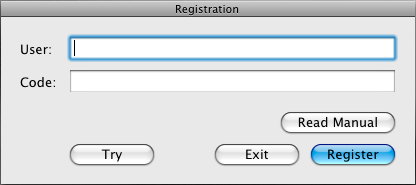
MacTrial

The new “Try” button in the startup/registration window allows emulating a QL with 128 KB or RAM and speed similar to that of the 68008 CPU.

As always, registration unlocks fast CPU emulation and the full set of features:

TrialInfoWindow

Download this update from the Q-emuLator for OS X page!

Saturday, April 20, 2013

Minerva and Games

The Minerva ROM brings a number of improvements to QDOS, but some QL games (especially early ones) don’t work correctly on it. What are the technical reasons for these problems?

For last year’s release of the “QL Games Collection” I worked on a special version of
Q-emuLator to use as the runtime for the games and I had the opportunity to investigate and answer this question for many games.

Here is what I found, the main differences between Minerva and Sinclair ROMs that can cause incompatibilities:

  • Minerva expects programs to run in user mode. If a program changes the supervisor stack pointer even just for a short while, Minerva can crash, for example when the interrupt 2 service routine is called.
  • Some games take complete control of the QL, typically to maximize speed and available memory, to use the second hardware display page or to strengthen the copy protection. However, virtually all of these programs still need to call QDOS to communicate with the IPC co-processor to play sounds and to read the keyboard.
    In Sinclair ROMs, the IPC functions are at a lower level than the rest of the OS, but on Minerva IPC access is more similar to any other QDOS calls and it accesses the system variables, which these games normally overwrite. This can cause crashes or funky behavior.
  • The interrupt 2 handler, which some games use to get the correct timing or to run code periodically, accesses some system variables both on Sinclair and Minerva ROMs. However, the Sinclair handler can often continue to work when the variables are overwritten, while the Minerva one can not.
  • Minerva treats unhandled exceptions very differently than the Sinclair ROM.
    It’s actually pretty common for QL software to contain bugs that cause unhandled exceptions as when running on Sinclair ROMs most of these exceptions were simply ignored by QDOS and many software authors didn’t even have a chance of noticing the problem.
    On Minerva, unhandled exceptions cause a call to the OS rather than just being ignored and this in turn can have unexpected side effects, or crash the system when combined with any of the previous issues (for example for games that take over the entire system).

In general, when running early QL games on an emulator, the safer choice is to use a Sinclair ROM and set the amount of RAM to 128 KB to avoid incompatibilities. A number of these games wouldn’t work if the QL had a RAM expansion as they expected everything to be at the same fixed memory addresses as on a 128 KB QL.

Monday, February 11, 2013

3.1.3 update for Windows

Version 3.1.3 for Windows is out with the following changes:

  • Exit and re-enter full screen mode on Alt-Tab.
  • Return cartridge name in "get medium info" trap for microdrive images (*.mdv).
  • Fixed crash when QCF file was passed on the command line.

Saturday, January 26, 2013

SMSQ/E gets a new BSD-style license

Last week the license for the SMSQ/E operating system was changed to a BSD-style free license.

SMSQ/E can be considered the evolution of QDOS and while it cannot run the older Sinclair QL games, it offers many additional features like file system support for sub-directories, high resolution graphics and improved windowing system.

Q-emuLator has been able to run the Gold Card version of SMSQ/E for about ten years, although typically only users that already had purchased that version of SMSQ/E took advantage of this feature.

In 2010 I did a small experiment, modifying SMSQ/E to allow a 1024 x 768 display resolution when running on Q-emuLator. It was not possible, however, to publish the results. The SMSQ/E license at the time allowed free access to the sources, but distribution of binaries was restricted.

The new license finally allows distribution of that modified version of SMSQ/E, although it should still be considered experimental. On the software page of the Q-emuLator web site you can now download:

  • A demo QLPAK with a short SuperBASIC program that draws colored circles under SMSQ/E, using a screen resolution of 1024 x 768 pixels and 16 bit color.
  • A variant of SMSQ/E 3.13 modified to allow the 1024 x 768 resolution when running on Q-emuLator.
  • The Gold Card version of SMSQ/E.


http://qemulator.blogspot.com/

Screenshots from the circles demo QLPAK.

Thursday, March 15, 2012

QL Games Collection

QL_Games_Collection
The Sinclair QL Games Collection is a re-release of ten Sinclair QL games.

Available for Windows, it allows playing these games directly without having to purchase the individual games and without having to install and configure a QL emulator to run each game.

The Games Collection is sold by Rich Mellor, who contacted the game publishers and negotiated the special low price. Follow this link to see more screenshots and to purchase this product. Jiri Dolezal wrote the main application and an installer, while a special runtime version of Q-emuLator allows the games to run on Windows.

The Sinclair QL Games Collection includes the following games:
  • Cuthbert in Space
  • Deathstrike
  • Hoverzone
  • Jungle Eddi
  • QL Hopper
  • QL Pengi
  • QL Vroom
  • Stone Raider II
  • The King
  • The Lost Pharaoh


PharaoCollection


Peter Scott has uploaded a gameplay video on YouTube:

Sunday, February 5, 2012

Q-emuLator 1.1 for OS X

Version 1.1 of Q-emuLator for Max OS X is available for download!

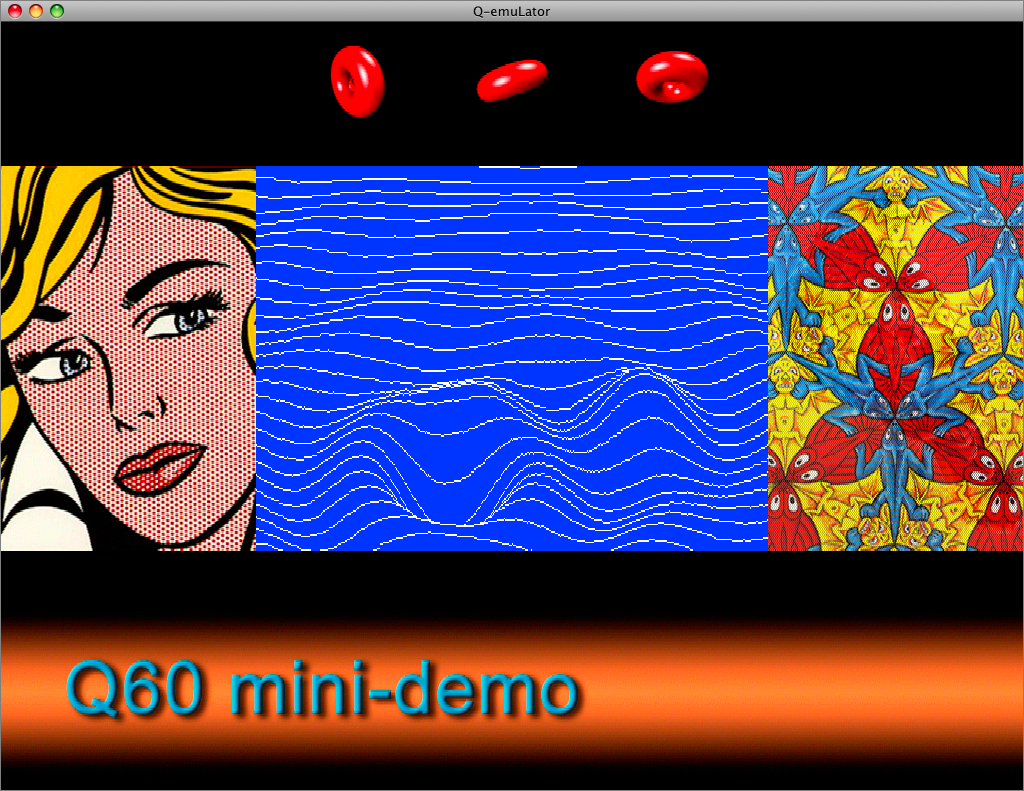
This update adds emulation of three of the Aurora video card graphics modes (512 x 256 and 1024 x 764 with 4 colours, and 512 x 480 with 256 colours) and two graphics modes of the Q40 and Q60 computers (512 x 256 and 1024 x 512 with 65536 colours), plus an extra high resolution mode (1024 x 768 with 65536 colours).

Q60 display small

The CON_ and SCR_ drivers in the QL’s operating system cannot take advantage of these graphics modes, but applications can access the video display memory directly, and the Gold Card version of SMSQ/e that includes the “GD2” colour drivers can use the Aurora video modes.

Another new feature in version 1.1 is the addition of a TCP/IP driver (SCK_ and TCP_ devices).
The following screenshot shows the Google web page accessed through the QDOS TCP/IP device:

Lynx

The software page on the Q-emuLator web site has two demos of the Q60 video modes and a .QLPAK with the Lynx browser for browsing the Internet from QDOS.

For a detailed list of all changes included in the version 1.1 update, read the version history.

Sunday, January 29, 2012

Q-emuLator 3.1 for Windows

FlpZipAn update for the Windows version of Q-emuLator is available, adding support for compressed floppy disk images and improving ‘QL Speed’ accuracy.

The emulator now patches Minerva ROMs to avoid a Minerva bug that was causing EDIT/AUTO to delete lines from SuperBASIC programs when external ROMs like the Toolkit II were installed.

For a detailed list of changes, read the program’s version history.

To install the update, first uninstall the current version (from Control Panel), then install version 3.1 from the download page.

Sunday, November 13, 2011

The blog for Q-emuLator news

ColorQL

This is the official Q-emuLator (Sinclair QL emulator) blog.

Subscribe to the RSS feed to automatically receive posts, including articles and news about Q-emuLator releases (updates).

You can download Q-emuLator for Windows and OS X from the Q-emuLator web site.